
Prepare Conference Badges with Dryfta’s Summit and A4 Four-Fold Starters
Preparing name badges involves more than placing a logo beside a participant’s name. Conference teams need readable names, space for roles, a usable QR code, and a layout that suits their chosen paper. Starting from an appropriate design makes those decisions easier to review before printing begins.
Dryfta’s Badge Builder now provides Summit as the starting layout for eligible standard badge sizes and an A4 four-fold starter for A4. Both starters remain fully editable drafts until you save. Existing customized designs are preserved, giving organizers a practical starting point without automatically replacing badges they have already prepared for their event.
Two starting points for different badge formats
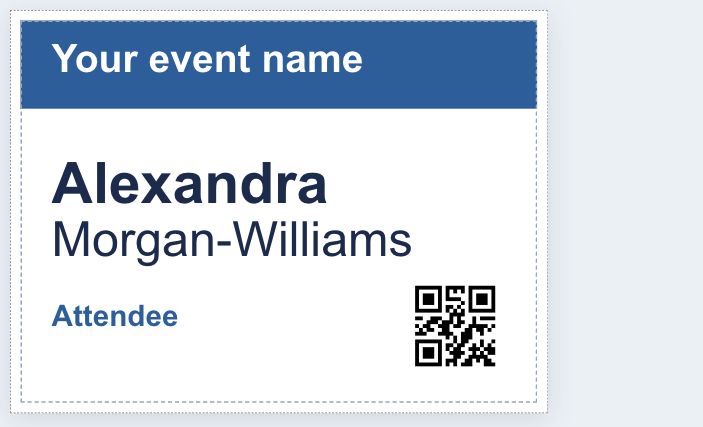
Summit puts the participant’s first name and last name at the center of the design, with an event-name band, a role line, and an attendee QR code. It is a useful starting point when the main job of a badge is to help people recognize each other across a registration desk or during a conversation.
The layout adapts to the supported standard sizes offered in Badge Builder. Select the physical badge size before adjusting text or placing additional fields. A design that looks balanced on one size should still be reviewed at the size you intend to print.
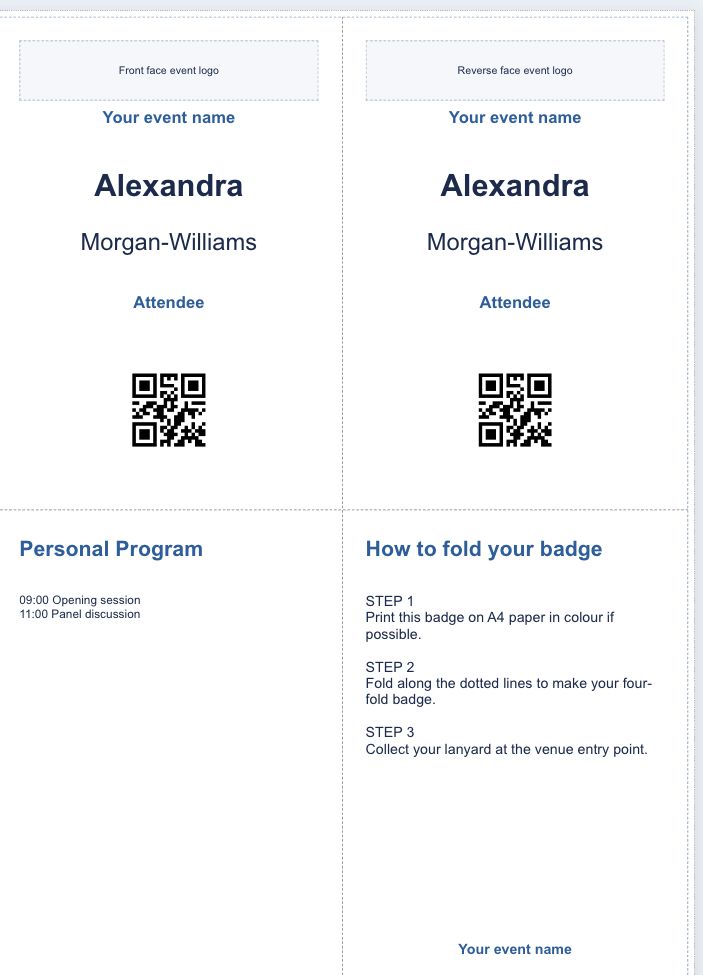
The A4 four-fold starter uses one A4 sheet with four defined panels. Its example layout includes front and reverse identification faces, a personal-program area, and folding instructions. It suits teams considering a folded badge that participants can prepare from an A4 printout. The instructions and example content can be edited to match your actual event process.
| Starter | Format | Useful starting point for |
|---|---|---|
| Summit | Supported standard badge sizes | Readable participant names, role and QR code |
| A4 four-fold | One folded A4 sheet | Identification faces, a program area and folding guidance |
A starting draft, with your saved work protected
The new defaults apply to empty designs and recognized factory layouts that are eligible for the update. A customized saved design is not silently exchanged for Summit or A4 four-fold. This matters when a team has already reviewed its artwork, chosen a supplier, or agreed on a layout for an upcoming congress.
When an eligible default is loaded, the editor identifies it as an unsaved draft and asks you to save if you want to keep it. Loading the starter is therefore a chance to review the design. It is not proof that a new layout has already been stored or sent to a printer.
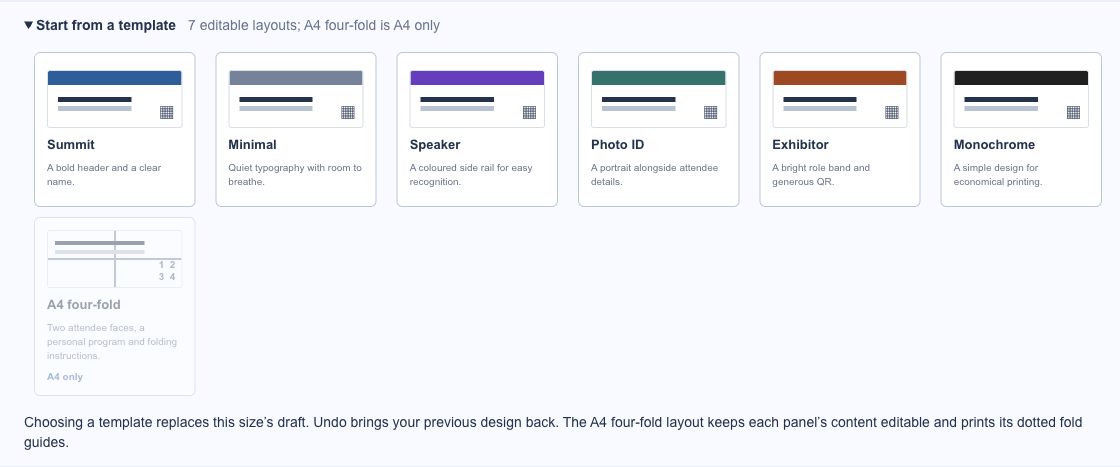
Undo lets you step back through draft changes. The template chooser also offers a route to available starting layouts when you deliberately want a different design. Review the current badge and any unsaved changes before choosing another template. Save only after you are satisfied with the result.
How to prepare a badge with the new starters
- Open Modules, choose Badges & Certificates, and open Badge Builder.
- Check the relevant role or user type and choose the badge size you intend to produce. A4 is required for the A4 four-fold layout.
- Review the starter shown in the editor. Where a customized design is already saved, keep it or deliberately choose another available template.
- Edit the text, colors and elements. Use attendee fields for information that should change for each participant, rather than typing one person’s details into the shared design.
- Check name lengths, QR-code space, the safe area and the paper or stock selection. Replace the demonstration folding text or program content where your event needs different instructions.
- Save the design when ready, then use the existing preview and badge-generation workflow to review the intended output before producing the full batch.
Three practical uses for event teams
A research conference with many different name lengths
For a university conference in Saudi Arabia, the registration team can use Summit to review names, affiliations and roles before the opening day. Include examples from the attendee data your team expects, and check that long institutional names remain readable. The starter provides a visual foundation; your team still decides which fields belong on the badge.
An association meeting using folded A4 badges
An association congress in Riyadh or Jeddah may choose the A4 four-fold starter when a folded sheet suits its registration process. Adapt the program area and folding instructions to the actual venue arrangements, then print and fold a sample. Confirm how participants will obtain their lanyards instead of relying on the demonstration wording.
An event team preparing several participant roles
A professional congress with attendees, speakers and moderators can use a consistent starting layout while reviewing each role’s design separately. Select the intended role and check representative output before producing the badges. This makes the registration team’s preparation concrete without assuming that one layout fits every role or printer.
What to check before printing
The editor’s safe-area guide helps you keep important content away from the cut edge. A QR code also needs clear surrounding space and a readable printed size. Avoid placing long text or decorative artwork so close to it that the code becomes difficult to scan.
- Check a short name, a long name and a long affiliation at the intended badge size.
- Keep QR codes clear of text, artwork and the cut edge.
- Match the paper or stock selection and print scale to your actual output.
- Print and fold a physical sample before producing the full badge batch.
Common questions
Will my existing custom badge be replaced?
Customized saved designs are preserved. Automatic starter selection is restricted to designs eligible for the new defaults. If your event already has a finished custom design, inspect it before deliberately switching templates.
Does viewing a starter save it?
No. The editor shows an explicit notice when a default layout is loaded as a draft. Use Save when you want to store that design.
Can I use the four-fold layout at another size?
The A4 four-fold starter is for A4. Use an appropriate standard-size layout for other badge formats and review its physical dimensions before printing.
Prepare the design before the registration desk opens
Start with the format that matches your event, personalize only the information you need, and review a sample output with the colleagues handling registration. For help with Badge Builder and your event’s printing setup, visit the Dryfta support knowledge base.