
Dryfta Event App Publisher: A Clearer App Workspace for Conference Teams
Conference teams preparing an event in Saudi Arabia often coordinate several channels at once: the event website, attendee emails, and the mobile app. Before sharing app instructions, organizers need a clear place to review the saved mobile presentation and find the tools they will use to communicate with attendees.
Dryfta’s updated Event App Publisher now has its own module in the administration dashboard. It brings app setup, Push Notifications, and Private Messaging together with direct sidebar routes. A phone-style guest-homepage preview gives your team a visual reference for the event’s saved app configuration, including banners, venue information, and homepage links.
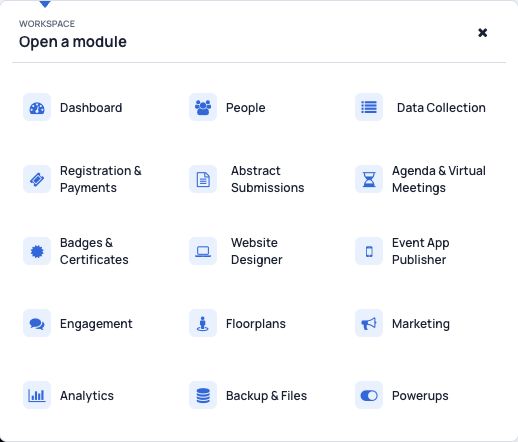
A dedicated workspace for event app preparation
Open the module selector and you will now find Event App Publisher alongside Website Designer. This gives website and mobile app work clearly named destinations when several colleagues are preparing an event together.
The app workspace provides three direct routes:
- Event App Publisher for app settings and the saved guest-homepage preview.
- Push Notifications for the existing event notification tool.
- Private Messaging for the existing messaging controls.
The change reorganizes access to related tools. Existing administrator permissions and event add-on requirements still apply. The Push Notifications and Private Messaging shortcuts in Engagement also remain available.
See the saved guest experience in a phone-style preview
The new App preview panel presents the guest homepage in a layout based on the Flutter app. Event branding, supported homepage content, and the Home, Schedule, People, and More navigation appear together in a mobile-shaped view.
The panel carries a Saved settings label. It reads the stored configuration for the event, which gives organizers a consistent reference during preparation. A change made in a setting needs to be saved before the team should expect it to appear in that reference.
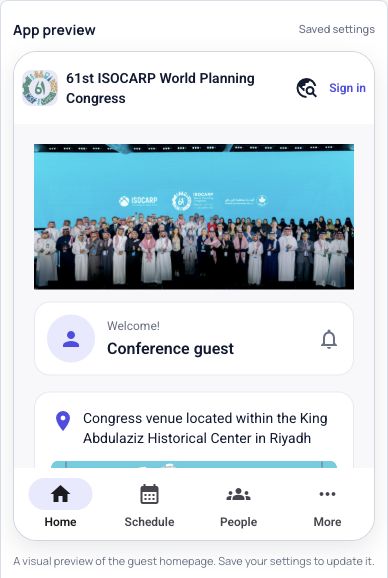
Depending on the event’s saved settings and available content, the preview can include the banner and event identity, guest welcome area, venue information, quick links, and supported homepage sections. The saved disabled-app state is also represented clearly, so a disabled setting does not appear as an already available attendee experience.
What organizers gain from the update
A practical review screen. The visual panel lets a program coordinator, event operations lead, and communications colleague look at the same saved guest presentation. It becomes easier to discuss which event information should be visible and what still needs attention.
A more obvious route to app controls. A colleague preparing the mobile app can open a dedicated module and use the sidebar to reach the existing communication tools. The team does not need to treat app administration as an incidental part of website work.
Clearer handoffs before attendee promotion. Reviewing the saved configuration can form part of the team’s readiness process before app instructions are added to confirmation emails or onsite guidance. The visual review should then be followed by checks in the installed app.
Continuity for existing teams. Familiar communication tools and the retained Engagement shortcuts remain available. Organizers can adopt the new workspace without assuming their access permissions or communication procedures have changed.
Use cases for Saudi conference and congress teams
1. A university research conference preparing its attendee welcome
A university may have different colleagues managing submissions, registration, and delegate communications. The registration or operations coordinator can open Event App Publisher and review the saved guest homepage with the communications team before directing participants to the app.
They can check the displayed event identity and available homepage information together, then test the important routes in the real app. This is particularly useful when the guest experience and the signed-in participant experience have different purposes.
2. An association congress reviewing venue and event information
For a congress in Riyadh, Jeddah, or another host city, the team may want the guest homepage to present the event banner, venue, and relevant links clearly. The saved preview provides a concrete view of that presentation.
The screenshot above demonstrates the type of visual review available through an actual Riyadh event configuration. It is an interface example, rather than a claim about that organizer’s results or an endorsement of a particular event setup.
3. An event operations team preparing its app communication workflow
A team supporting a professional conference may need to know where to open push notifications or messaging while managing the app. The direct sidebar routes give those tools a clear place within the same workspace.
Organizers should continue reviewing each message’s audience, content, and timing through the existing tool. Viewing the app preview does not send messages or test delivery to attendee devices.
A straightforward preparation workflow
- Sign in to the event administration dashboard with an appropriately authorized account.
- Open Modules, then choose Event App Publisher.
- Review app availability and the event’s relevant saved settings. If controls are locked, check the existing add-on and permission requirements.
- Inspect the App preview panel and its Saved settings label. Confirm the displayed enabled or disabled state matches your intended configuration.
- After any supported configuration change, save it and review the panel again.
- Check the installed event app on the devices your team uses, including the guest view and the important signed-in journeys, before sharing attendee instructions.
Keep the preview’s scope in mind
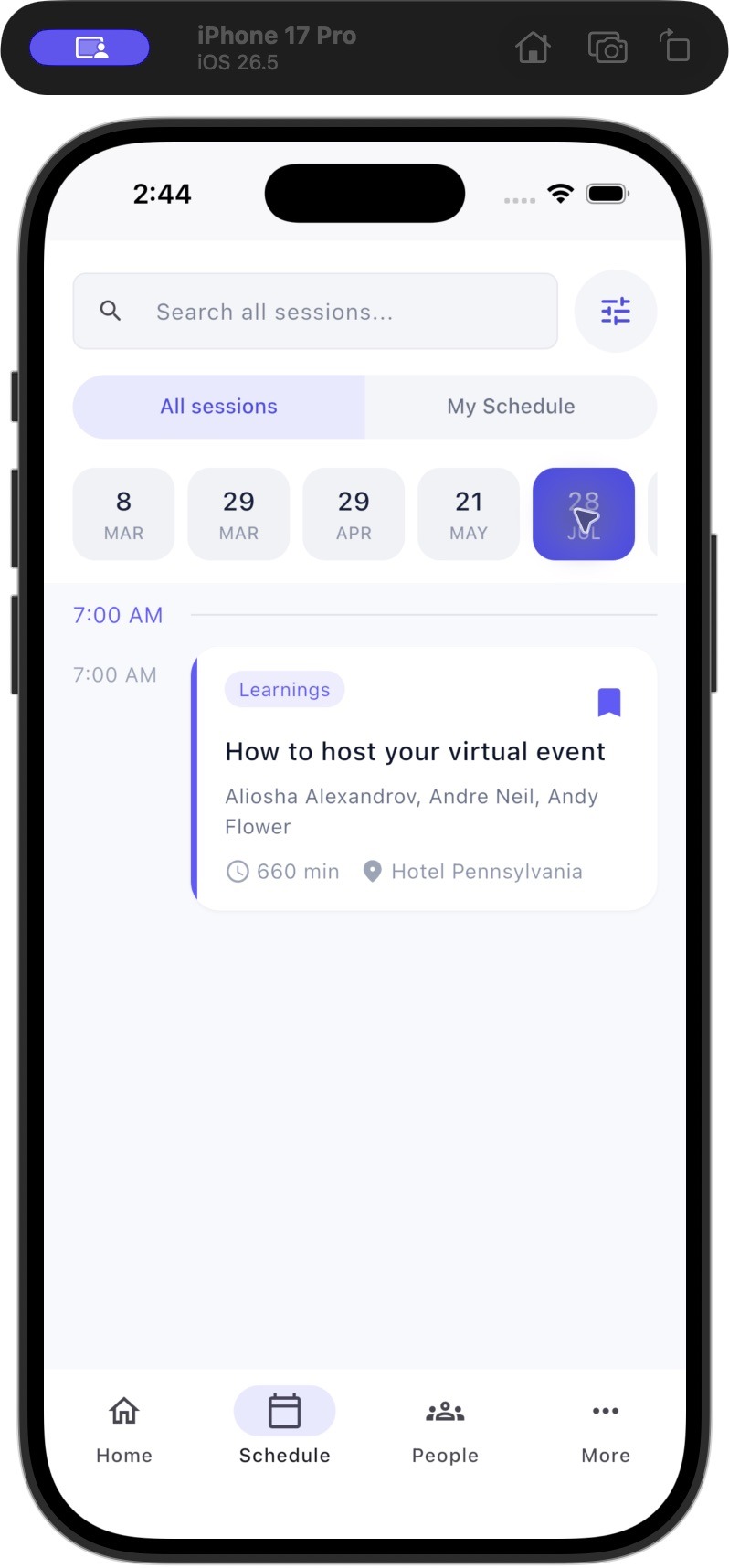
The visual preview covers the guest homepage. It does not act as a complete simulator for sign-in, a participant’s personal schedule, messaging, push delivery, or other interactive native app features.
Some settings also depend on supported app versions and the event’s available features. Keep a device-based review in your preparation process rather than treating the preview as proof that every attendee journey has been tested.
The Website Designer destination remains available for website work. App setup and website setup are related parts of event preparation, but each channel still benefits from reviewing its own actual presentation.
Common questions
Does the preview update while I am changing a setting?
It represents saved settings. Save supported changes before using the panel to review the resulting configuration.
Does opening the notification route send anything?
Opening a tool or viewing the app panel does not itself send a communication. Continue using the existing notification or messaging workflow and review the intended recipients before taking a send action.
Can colleagues use the familiar Engagement routes?
Yes. The existing Push Notifications and Private Messaging shortcuts in Engagement remain available, while the app workspace provides additional direct routes to those tools.
For help preparing your event configuration, consult the Dryfta support knowledge base. Your team can use the saved preview as a shared review aid, then confirm the important attendee journeys in the actual app.