
Choose Different Homepage Widgets for Your Event Website and App

Your conference website and event app often serve different moments in an attendee’s journey. A website helps visitors discover the event, while the app supports people preparing to attend and taking part. Dryfta now lets organizers choose homepage widget publication separately for each platform.
Use Website Designer to decide what appears on the website, and Event App Publisher to choose the app’s widgets. You can keep a supported widget off the website while including it in the app, or do the reverse. Shared content remains shared. Here is how the independent controls work and how to plan a clear experience.
Before you start
Use an administrator account with permission to edit Website Designer and Event App Publisher. Existing event-app availability and add-on requirements still apply. Check that the widget is supported on the intended surface and that it has the content or records it needs. Review the current saved settings before changing either homepage.
Make the publication decision in the right workspace
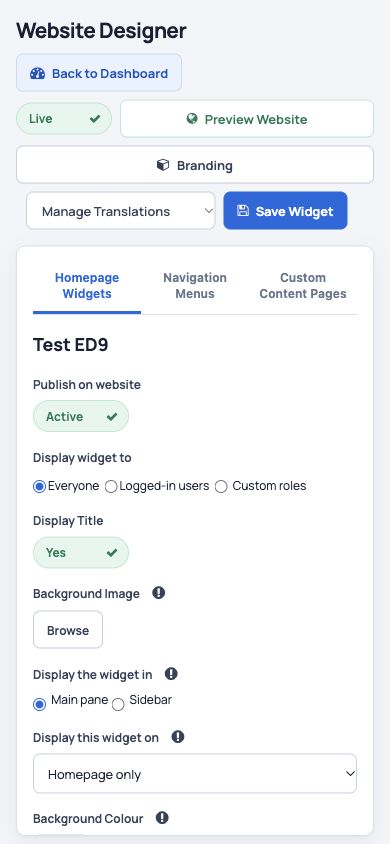
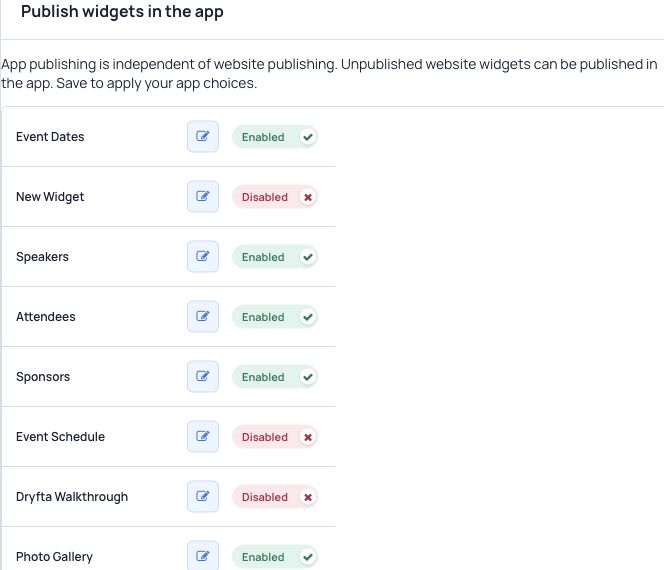
Website Designer now identifies its publication choice as Publish on website. That choice belongs to the website. Event App Publisher has a separate Publish widgets in the app area for supported app widgets. Its list includes supported widgets even when their website publication is off, allowing an organizer to make a deliberate app decision.
This is useful when a single homepage layout is not the best fit for both audiences. The website may introduce the conference to prospective visitors, while the app helps participants find event content quickly. Independent publication lets the team choose the appropriate supported widgets without treating one platform’s homepage as a compulsory copy of the other.
- Website Designer: manage the website publication choice.
- Event App Publisher: manage app publication for supported widgets.
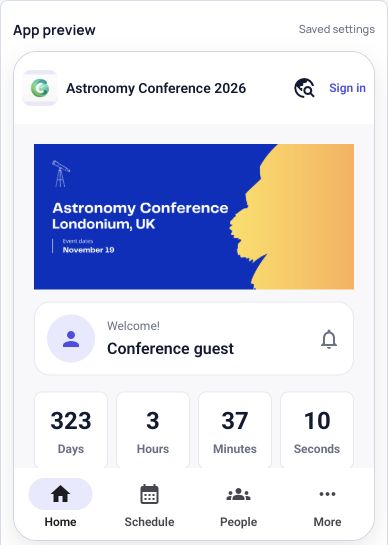
- Saved app preview: review the homepage produced by the saved app settings.
- Shared content: keep existing content, translation, ordering and access behavior in mind while planning both surfaces.
Understand the four possible publication combinations
| Website | App | Homepage result |
|---|---|---|
| On | On | The supported widget can appear on both homepages. |
| On | Off | The website can display it while the app homepage omits it. |
| Off | On | The app can display it even though the website homepage does not. |
| Off | Off | Neither homepage is intended to display the widget. |
Actual display still follows the widget’s supported behavior and the event’s existing access rules. This comparison describes homepage publication; it is not a promise that every widget type, page, navigation destination or underlying record becomes available in both places.
Prepare the website selection
- Open the event’s Website Designer and locate the widget you want to review.
- Check its Publish on website setting alongside the existing content and other widget options.
- Choose the website state that matches your communication plan and use the normal Save Widget control.
- Review the website itself to confirm the intended presentation. Treat that as a website check, rather than proof of the app state.
A website publication save now leaves the app publication choice alone. This helps the website editor work on the public presentation without also having to choose the app’s homepage selection. Content edits remain a separate consideration: if the widget uses shared content, changing its wording can still matter to more than one surface.
Choose the supported widgets for the app
- Open Event App Publisher for the same event.
- Find Publish widgets in the app and review the supported widget list, including widgets that are unpublished on the website.
- Set the app publication choices you want and use the normal Save control.
- Review the saved-settings app preview. Unsaved choices are not evidence of the saved homepage.
- Check the resulting attendee experience with the appropriate account and event settings before promoting a change.
New supported widgets begin with app publication off, so adding a website widget should be followed by an intentional app review. Do not assume that a widget was published in the app simply because it was created or made visible on the website. Existing widgets should also be reviewed according to their actual saved choices.
Keep content coordination separate from publication
The controls separate publication decisions, not the whole content-management system. Existing widget content, ordering, translations and permissions retain their established behavior. If two team members work on the same widget, agree who owns the content and review the current saved state before either person changes it.
For a multilingual conference, review the relevant language content as well as the publication switches. Independent homepage selection should not be described as creating a separately authored app translation or automatically translating a widget. Keep the usual language workflow and audience guidance clear.
Three practical ways to use independent publication
A Riyadh congress welcoming visitors and delegates
The public website can focus on event discovery and practical information, while the app homepage emphasizes supported content useful to attending delegates. Choose publication separately, then review both experiences. This is a presentation choice rather than a confidentiality guarantee; the congress’s existing roles and access settings remain responsible for restricted information.
A university symposium with a detailed website program
A university may prefer to display a program widget on the website while keeping the app homepage concise. Review that widget’s two publication choices and check the saved app preview. The app’s normal Schedule navigation is a separate part of its experience, so do not tell participants that hiding a homepage widget removes all program access.
A Saudi association with separate event communication teams
An association’s website editor and app coordinator can agree which supported widgets belong on each homepage, then save their choices in the appropriate workspace. A final shared review helps them spot differences before inviting members. Content and translation work still need coordination because separate publication flags do not create separate copies of the underlying widget.
Check both homepages before announcing a change
A useful review covers the saved website state, saved app selections and saved app preview. Check that the content makes sense in each context and that any expected role restrictions still apply. If a widget is missing, first confirm that it is supported in the app, is published on the intended surface and has suitable content or records to display.
The feature is a practical extension of Event App Publisher’s dedicated workspace: a place to make an app-specific homepage decision while Website Designer manages website publication. It helps teams explain why the two homepages differ and avoids relying on one switch to represent two different communication choices.
For help planning supported widgets or checking a saved configuration, contact Dryfta support. Provide the event and widget name, describe which homepage you expected it on and include the observed saved state so the team can investigate the right surface.